
Give Away Promotions
Give Away Promotions configures controlled voucher campaigns based on predefined voucher number ranges. A campaign can define when it is active, which stores and client categories participate, the purchase-amount criteria, voucher expiry, voucher payment type and the serial ranges/denominations that belong to the campaign.
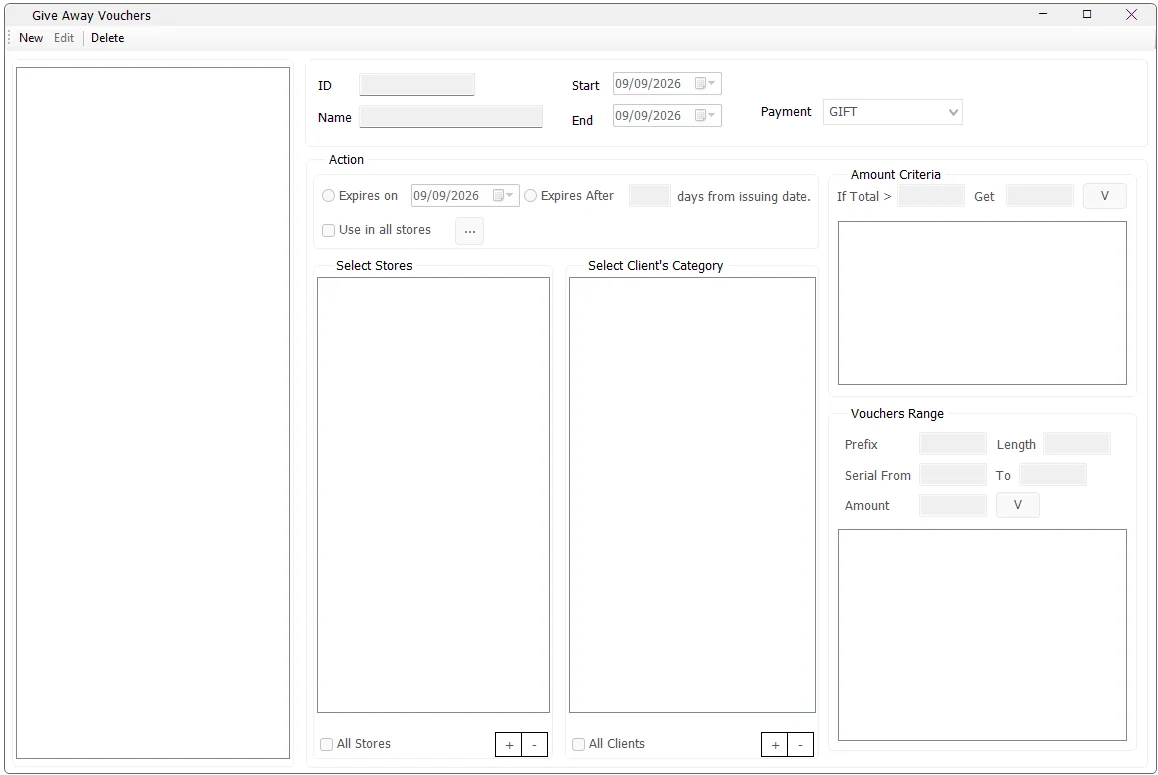
What the module defines
This screen defines a voucher campaign. It stores the campaign rules and valid voucher serial ranges; it does not require an administrator to create every individual voucher number one by one.
| Area | Purpose |
|---|---|
| ID / Name | Identifies the giveaway promotion. |
| Start / End | Defines the period in which the campaign is active. |
| Payment | Selects an active IMS payment type that is configured as a voucher payment, such as GIFT. |
| Amount Criteria | Defines purchase-total thresholds and the voucher value associated with each threshold. |
| Expiry | Sets a fixed voucher expiry date or a number of days from issuing date. |
| Select Stores | Defines the stores participating in the campaign, or All Stores. |
| Select Client's Category | Limits the campaign to selected customer categories, or All Clients. |
| Use in all stores | Controls whether vouchers can be used in all stores; when it is not selected, the adjacent button is used to choose the allowed redemption stores. |
| Vouchers Range | Defines one or more valid blocks of voucher numbers using Prefix, Length, Serial From, Serial To and Amount. |
Typical campaign workflow
- Click New and enter a campaign name.
- Set the Start and End dates.
- Select the voucher Payment type.
- Choose the voucher expiry rule: Expires on or Expires After.
- Choose the stores and client categories to which the campaign applies.
- Add at least one Amount Criteria entry.
- Add at least one Vouchers Range.
- Define where the resulting vouchers may be used.
- Click Save.
IMS validates that the campaign has stores, clients, amount criteria, voucher ranges, valid expiry information and valid campaign dates before saving.
Amount Criteria
The If Total > … Get … section allows multiple threshold/value rules. Each entry contains:
| Field | Meaning |
|---|---|
| If Total > | The qualifying transaction amount. |
| Get | The voucher amount associated with that qualifying level. |
To remove an entry while editing, select it in the criteria list and press Backspace.
Voucher serial ranges
The Vouchers Range area defines authorized blocks of pre-numbered vouchers. This is the part of the design that makes the module suitable for printed cards, coupons or externally distributed voucher batches.
| Field | Purpose |
|---|---|
| Prefix | Alphanumeric prefix identifying the voucher batch. |
| Length | Configured voucher-number length. Voucher numbers are limited to a maximum of 16 characters. |
| Serial From / To | Numeric range allocated to that prefix. |
| Amount | Denomination/value assigned to that voucher range. |
Each prefix can appear only once in the range list for the campaign. The Serial From value must be lower than Serial To. To remove a range while editing, select it and press Backspace.
Campaign stores versus redemption stores
The screen contains two store concepts:
| Store scope | Purpose |
|---|---|
| Select Stores / All Stores | Stores participating in the giveaway promotion. |
| Use in all stores | Where vouchers associated with the campaign are allowed to be used. If disabled, use the … selector to define specific redemption stores. |
This separation allows a campaign to be distributed through one set of stores while being redeemable through another set.
Client categories
Use All Clients when the campaign applies to every customer. Otherwise use the + and − buttons to maintain the eligible IMS client categories.
Voucher payment type
The Payment list contains only active payment types configured in IMS as voucher payments. This links the giveaway campaign to the payment method used by the voucher transaction workflow.
New, Edit and Delete
New changes to Save while creating a campaign. Edit changes to Cancel while editing. Existing campaigns can be modified and their store/client/criteria/range definitions are rebuilt when saved.
A giveaway promotion can be deleted only while IMS has no Give Away voucher transaction recorded against that Offer ID. Once the campaign has been used, IMS keeps the campaign definition so the historical voucher reference is preserved.
Give Away Promotions versus Special Offers Cash Back
| Give Away Promotions | Special Offers → Cash Back | |
|---|---|---|
| Primary design | Voucher campaign with controlled serial-number ranges and denominations. | POS promotion that grants Cash Back according to offer criteria. |
| Serial ranges | Yes — Prefix, Length, Serial From/To and Amount are central to the setup. | No serial-range setup is exposed in the Special Offers maintenance screen. |
| Targeting | Stores and Client Categories. | Stores, Client Categories and Items, with broader promotion rules. |
| Payment type | A voucher payment type is selected in the campaign. | Configured through the Special Offers Cash Back workflow rather than this campaign's Payment field. |
How the campaign is stored
The maintenance screen saves the campaign header, amount thresholds, participating stores, client categories, redemption stores and serial-range definitions. Individual issued/used voucher transactions are stored separately by the voucher transaction workflow. This separation lets IMS keep the original campaign definition while tracking actual voucher activity independently.