
Change Password
Change Password lets the currently signed-in IMS user replace their own password. IMS first asks the user to confirm the existing password, then opens the password-change dialog where the new password is entered twice.
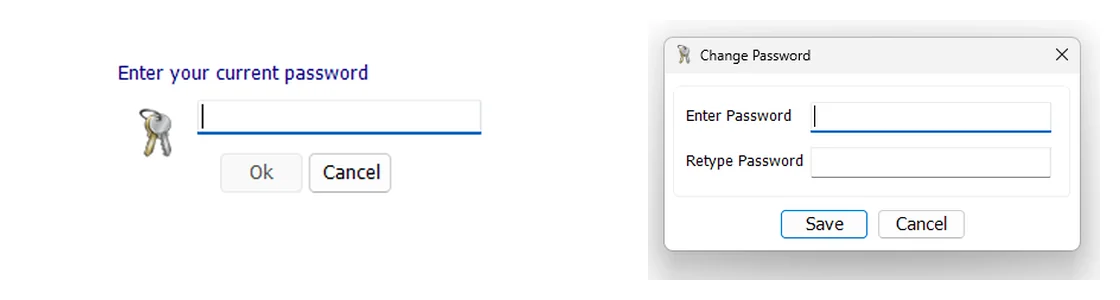
1. Confirm the current password
IMS first displays Enter your current password. The password entry is masked. The OK button remains disabled until something has been entered.
When OK is clicked, IMS checks the entered value against the password stored for the currently active IMS user. If the password matches, the confirmation succeeds and IMS continues to the password-change dialog. If it does not match, IMS reports that the password is incorrect, clears the entry and returns focus to the password box.
2. Enter the replacement password
After the current password has been confirmed, the Change Password dialog asks for:
| Field | Purpose |
|---|---|
| Enter Password | The new password the user wants to use for IMS. |
| Retype Password | Confirmation of the same replacement password before Save. |
Click Save to submit the new password, or Cancel to leave without completing the change.
Recommended workflow
- Open System → Change Password.
- Enter the current IMS password and click OK.
- Enter the new password.
- Retype the same new password in the confirmation field.
- Click Save.