Sales Transactions
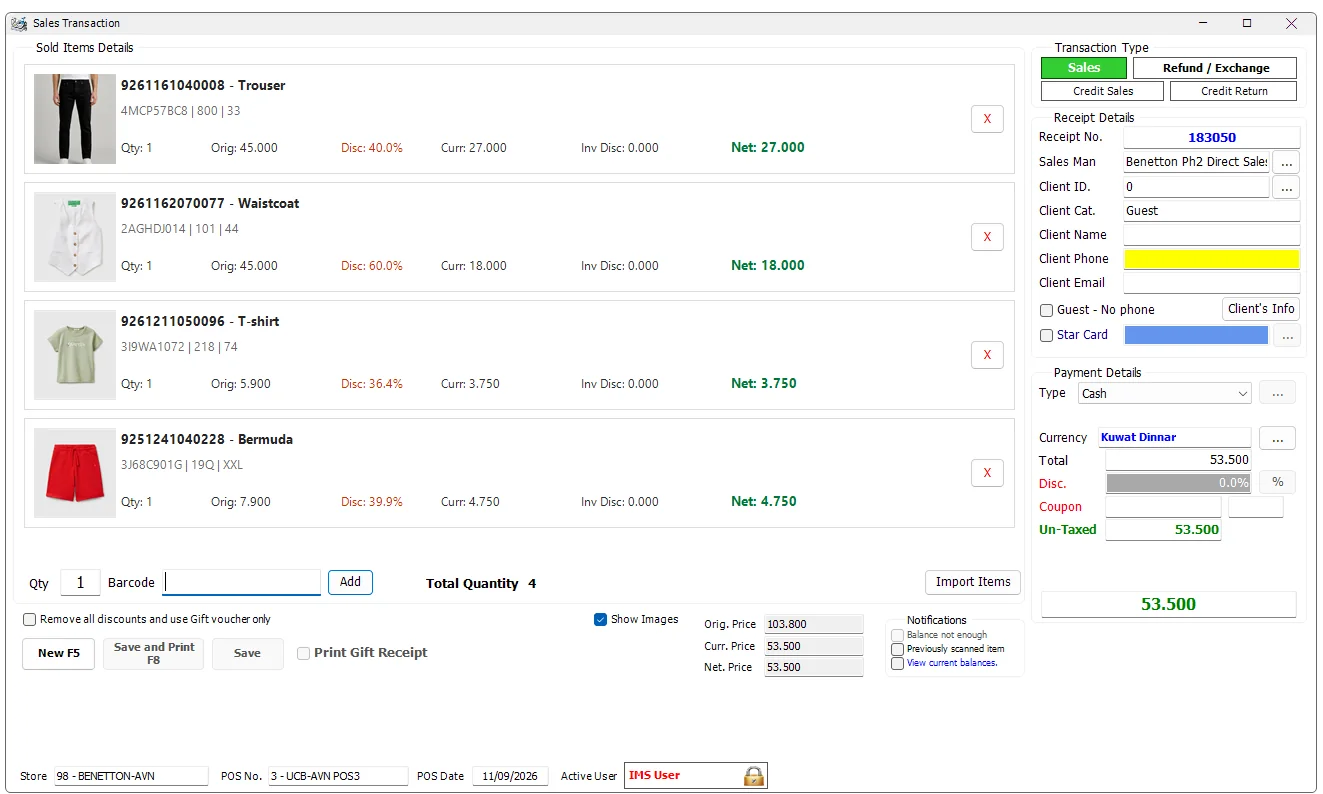
Sales Transactions is the main IMS POS workspace. It brings item scanning, transaction type, customer and loyalty information, payment, discounts, receipt totals and printing into one screen while keeping the active Store, POS, POS Date and user visible at all times.
Starting a transaction and Store selection
When the user has access to more than one Store, IMS can show the Branch Selection step before Sales Transactions opens. The list contains the Stores available for transactions and only the transaction types allowed by the user's Group Policy.
For a Return/Credit Return, the same start step can also accept the original sales Branch and Receipt No. so IMS can verify that the original invoice exists and still contains refundable items before loading Sales Transactions.
Transaction Type
The buttons at the upper-right switch the POS workflow between:
| Type | Purpose |
|---|---|
| Sales | Normal cash/payment-type retail sale. |
| Refund / Exchange | Receipt-based refund workflow and, when exchange sizes are enabled, the exchange workflow. |
| Credit Sales | Customer credit sale, subject to the appropriate user permission and customer requirements. |
| Credit Return | Return against the credit-sales workflow. |
If the active user's Group Policy does not allow the selected transaction type, IMS requests authorization from a permitted user before changing mode.
Refund / Exchange workflow
Refund / Exchange is tied to an existing sales receipt. IMS first identifies the original receipt and only loads sold lines that are still eligible to be returned; the cashier then chooses the required item(s), or enters the size-exchange workflow when that option is used.
1. Select the original receipt
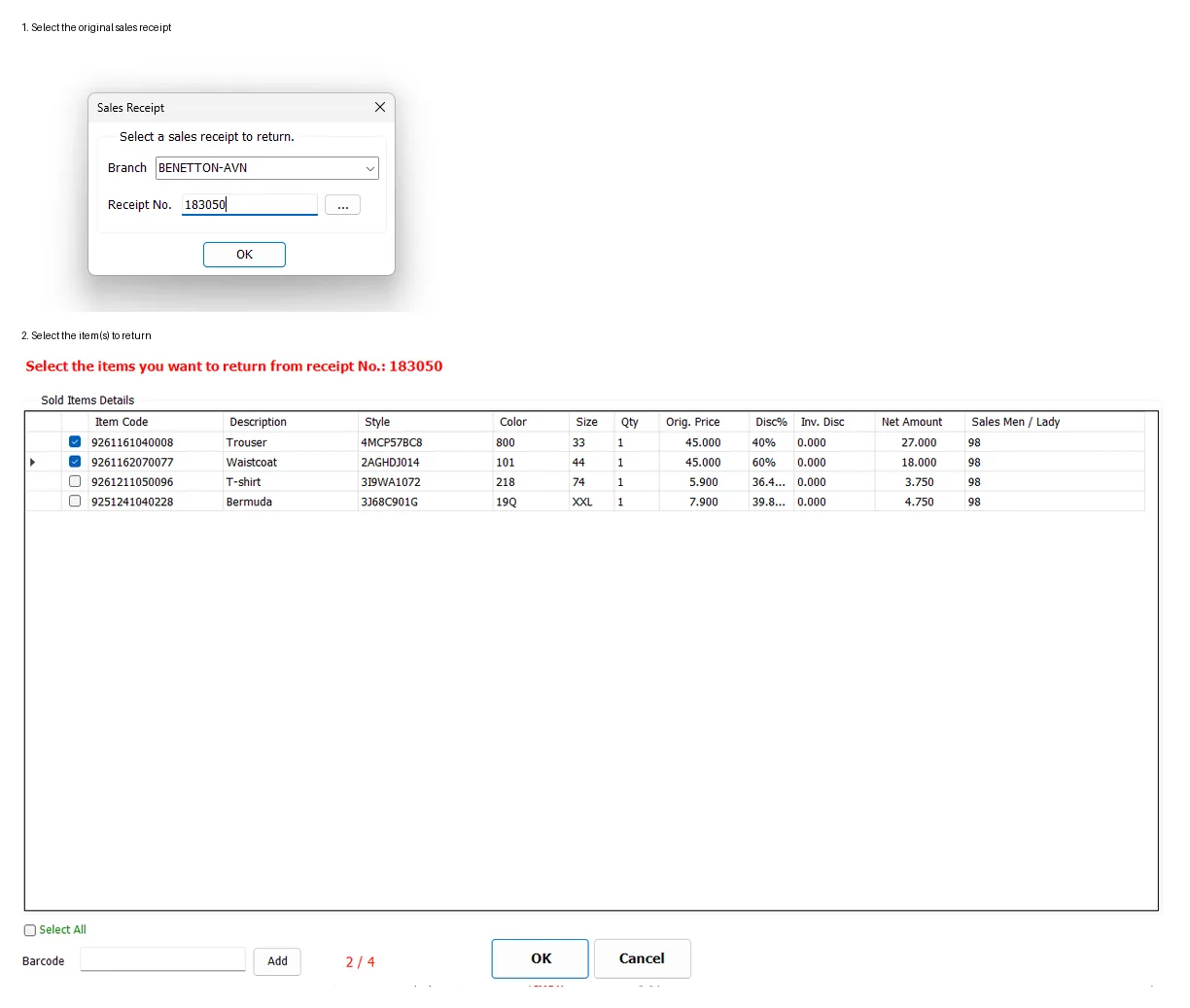
The Sales Receipt dialog asks for the original Branch and Receipt No.. The browse button can be used for the receipt-search workflow.
The browse workflow can also locate original Cash Sales by customer phone number. IMS lists matching receipts (most recent first) with their Branch, date and Receipt No., allowing the cashier to select the correct original sale when the customer does not know the receipt number.
IMS verifies that the receipt exists and that it still contains at least one positive-quantity line that has not already been marked as refunded. If no refundable lines remain, the return is stopped instead of creating another refund against the same item(s).
2. IMS checks whether the receipt can be returned
Before item selection, IMS applies the return/exchange controls attached to the original transaction. These checks can include:
| Control | Behavior |
|---|---|
| Financial period | The financial period for the original receipt must still permit the return. A receipt in a closed financial period is rejected. |
| Return period | IMS checks the Store's configured return days against the original sale date. Users with the unrestricted-return permission can bypass the normal day restriction. |
| Offers / promotions | Some offers can require all affected items to be refunded so the offer can be recalculated correctly. IMS warns the cashier before doing this. |
| Promotion-issued vouchers | If a promotion issued a voucher from the original receipt, IMS can cancel the unused voucher when refunding. If that voucher has already been used, IMS can restrict the receipt to size exchange only. |
| Voucher-paid receipt | A receipt paid by a voucher can require the complete receipt to be refunded rather than allowing arbitrary partial-line removal. |
| Loyalty-points payment | A receipt paid with Star Rewards points can require a full refund so the points/payment reversal remains consistent. |
3. Refund or change sizes
For a normal cash return, when Enable exchange sizes is active in System Settings and the receipt is eligible for exchange, IMS asks “Do you want to change sizes?”.
Select Yes to continue into the dedicated size-exchange workflow. Select No to continue as a refund and choose the sold lines to return.
Exchange Size screen
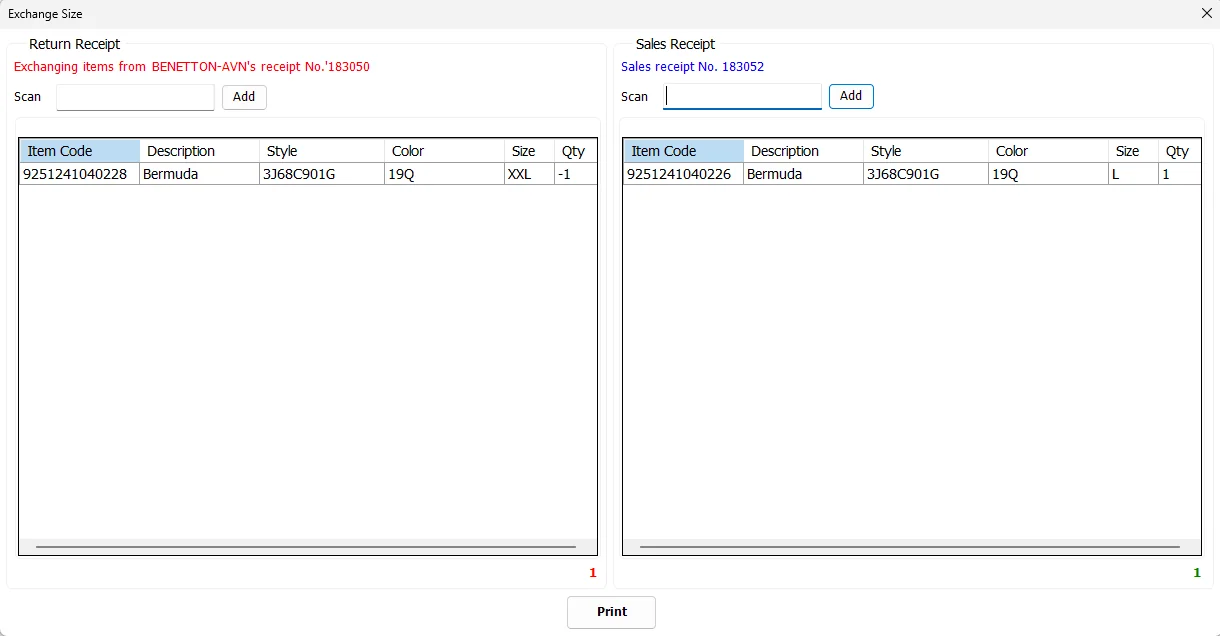
The left Return Receipt side accepts only items that exist on the original receipt and have not already been used in this exchange. The right Sales Receipt side accepts a replacement item only when it matches the returned item's Style; when Exchange sizes based on item color is enabled in System Settings, Color must match as well.
The replacement cannot be the exact same Item Code, and IMS checks that sufficient balance exists in the current Store unless that Store is configured to ignore balance. Save becomes available only when the number of returned units equals the number of replacement units.
The new exchange receipt keeps the original selling values used by the returned line while replacing the item/size identity, updates stock balances, marks the original line as refunded/exchanged, writes the exchange to the activity log, prints the exchange receipt and then returns Sales Transactions to a new transaction.
4. Select the item(s) to return
The item-selection screen shows the original receipt's refundable lines with Item Code, Description, Style, Color, Size, Qty, original price, discounts, net amount and Sales Man/Lady. Check the required lines, use Select All when appropriate, or scan a barcode to select a matching line.
At least one item must be selected. Depending on the original offer/payment rules, IMS may force all lines to be selected rather than allowing a partial return.
5. Complete the refund transaction
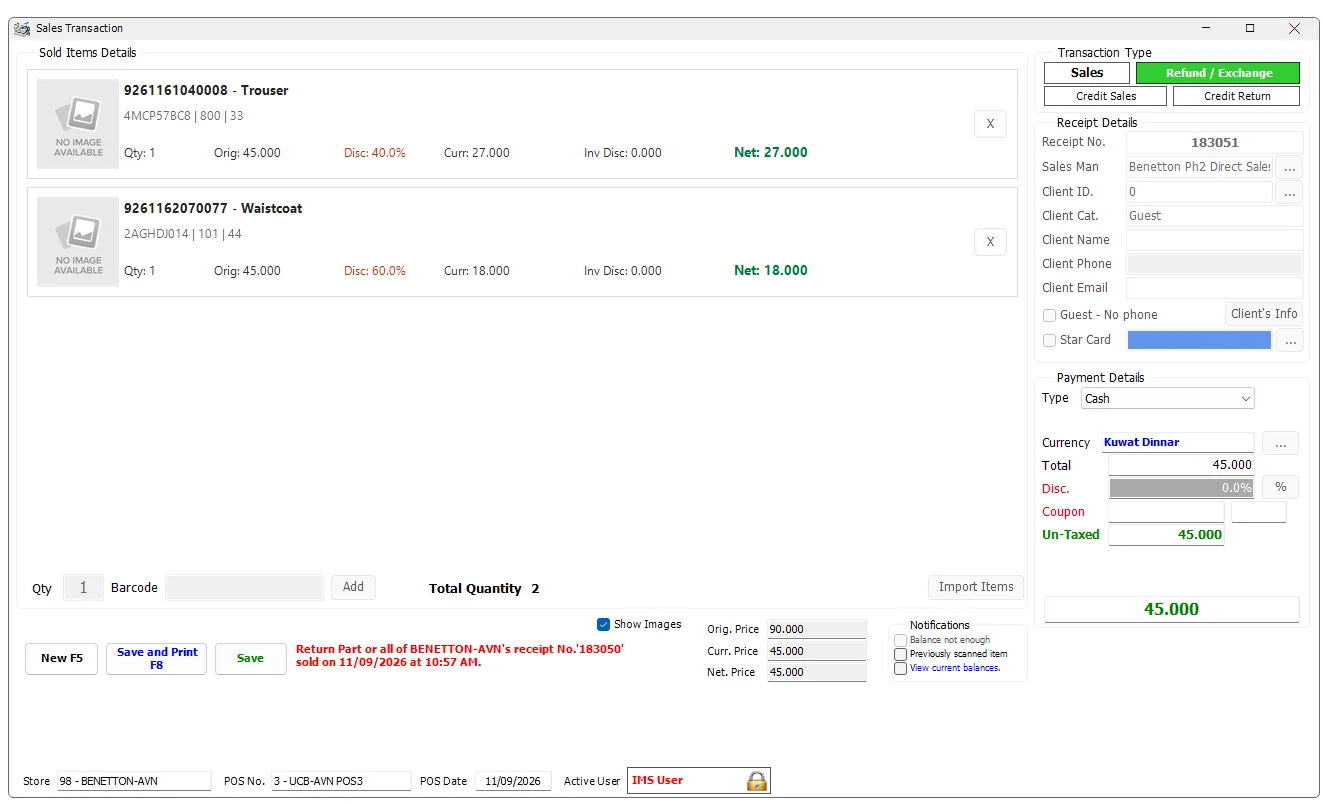
The return receives its own new Receipt No. The red reference message identifies the original Store, receipt number, sale date and time so the cashier can see exactly which sale is being reversed.
Once the original lines are loaded, normal item entry/import is disabled: the refund is based on the selected original receipt lines rather than newly scanned merchandise.
Refund payment methods
The payment dropdown in Refund / Exchange is deliberately different from the normal Sales payment list. IMS loads only active payment methods configured with Allow in Refund. Payment methods that are not marked for refunds do not appear.
This behavior comes from the Sales Payment Types setup, where each payment type has its own refund eligibility. A method can therefore be available for normal sales but unavailable as a refund method.
The application loads refund payments by selecting active payment methods whose refund flag is enabled.
Refund workflow at a glance
- Select Refund / Exchange.
- Select the original Branch and Receipt No.
- IMS confirms that refundable lines remain and validates financial-period/return-policy rules.
- If enabled and appropriate, choose whether this is a size exchange.
- For a refund, select the original line(s) to return.
- Review the new return receipt and select an allowed refund payment method.
- Save or Save and Print the refund transaction.
Receipt Details
| Field | Purpose |
|---|---|
| Receipt No. | The IMS receipt/invoice number assigned to the current transaction. |
| Sales Man | The salesperson attached to the receipt. IMS initially uses the Store's default Sales Man/Lady when available. |
| Client ID / Category / Name | The customer identity and category associated with the transaction. |
| Client Phone / Email | Customer contact details used by sales, loyalty and receipt-delivery workflows. |
| Guest - No phone | Allows an eligible cash transaction to continue without a customer phone number after confirmation. |
| Client's Info | Opens the customer/Star Rewards transaction-information dialog. |
| Star Card | Associates a Special/Star Card with eligible cash transactions for card payment or recharge workflows. |
Sold Items Details
Items can be added by scanning/entering an Item Code or Barcode, setting Qty and clicking Add. IMS searches the primary barcode, Item Code and additional-barcode records before treating the item as not found.
For inventory items, IMS checks the Store balance unless the Store is configured to ignore balance. Service Items follow their service-price workflow instead of the normal stock-balance path.
In the card view shown above, each sold line can display:
| Information | Meaning |
|---|---|
| Item image | The Style/Color image when available. |
| Item Code and Description | The sold SKU and item description. |
| Style / Color / Size | Fashion-retail variant information for the item. |
| Qty | Quantity on the line. |
| Orig. | Original retail price. |
| Disc. | Item discount percentage. |
| Curr. | Current selling price after the item-level markdown. |
| Inv Disc. | Invoice/customer-level discount amount allocated to the line. |
| Net | Final line net amount. |
Use the red X on a line to remove an unsaved item from the current receipt. Show Images controls whether the image-oriented item presentation is used.
Service Item pricing
Service Items do not follow the normal stock-balance workflow. When a Service Item has a configurable price, IMS opens the Service Item Price dialog. The entered value must meet the item's configured minimum price before the line can be accepted.
Service-item lines can therefore be used for operational charges/services whose price is entered at transaction time while still respecting the minimum allowed value defined in Manage → Service Items.
Sales Man/Lady assignment
The receipt starts with the selected/default Sales Man/Lady, but IMS also supports assigning Sales Man/Lady at item level. The Sales Man search can be restricted to the current Store and can be used to apply one salesperson to the receipt or a different salesperson to an individual line where required.
Scanning and notifications
The Notifications area contains local POS scanning preferences. Previously scanned item can warn the cashier before adding more quantity of an item already on the receipt. The balance-related option follows the Store's stock-balance configuration.
The lower item summary shows Total Quantity plus Original Price, Current Price and Net Price totals for the selected/current receipt.
Payment Details
| Field | Purpose |
|---|---|
| Type | Selects the payment method. The available choices come from the active Sales Payment Types and can include direct tenders, Multiple, Gift Voucher, StarReward Cash, Star Card, Exchange Note and Credit Note. In Refund / Exchange mode, the list is filtered to active payment methods configured as allowed in refund. |
| … beside Type | This is not a general payment-details button. It becomes available for payment workflows that need an additional dialog, principally Multiple, Credit Note and Exchange Note. |
| Currency | The transaction currency. Currency changing is shown only when the user's permission allows it. |
| Total | Receipt total before invoice-level deductions. |
| Disc. | Current invoice/customer discount. |
| Coupon | Discount-coupon information applied to the receipt. |
| Un-Taxed | Net amount before VAT where VAT is enabled. |
| Final amount | The final payable/refundable amount displayed prominently at the bottom of Payment Details. |
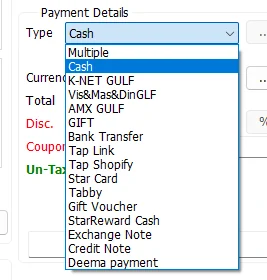
What happens when a Payment Type is selected
Payment selection is event-driven in Sales Transactions. Ordinary payment methods are selected directly, while special payment types immediately start the additional workflow they require. In refund mode, only refund-enabled payment methods appear in the dropdown.
| Payment selection | IMS behavior |
|---|---|
| Ordinary direct payment | The payment is selected directly. The … payment button remains disabled because no split/note workflow is required. For Cash, IMS uses the Cash Payment Calc when the receipt is completed so the cashier can enter the amount received and see the change/balance. |
| Multiple | The Multiple Payments Select window opens immediately. The … button remains available so the split can be reviewed or changed. |
| Credit Note | The Credit Note selection workflow opens immediately. A customer phone number is required when a Credit Note is used/issued in the sale. |
| Exchange Note | The Exchange Note dialog opens immediately. If the note does not cover the full receipt, IMS moves the transaction into Multiple payment so the balance can be paid by another method. |
| Gift Voucher / voucher payment | The voucher-redemption dialog opens immediately; the cashier does not first press the … button. If the voucher covers the receipt, it can remain the payment. If it covers only part of the receipt, IMS changes to Multiple and carries the redeemed voucher amount into the split-payment window. |
| StarReward Cash | IMS requires a validated customer and opens the loyalty redemption workflow immediately. A partial points redemption becomes part of a Multiple payment; a full redemption can cover the receipt directly. |
| Star Card | A Star Card must already be selected on the transaction. If its balance covers the sale, it can pay directly. If the balance is insufficient, IMS automatically changes to Multiple and preloads the available Star Card balance so the remainder can use another payment method. |
Cash Payment Calc
When completing a Sales Transaction using Cash, IMS opens the Cash Payment Calc so the cashier can enter the amount physically received from the customer before confirming the receipt.
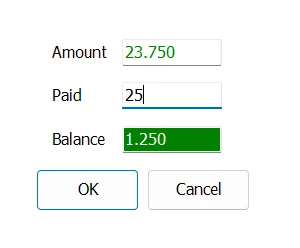
| Field | Meaning |
|---|---|
| Amount | The cash amount due for the current receipt. |
| Paid | The physical cash amount received from the customer. |
| Balance | The difference between Paid and Amount. When the customer pays more than the receipt amount, this is the cash change to return. |
Click OK to confirm the cash calculation and continue completing the transaction, or Cancel to return to Sales Transactions without accepting the entered tendered amount.
Bank/card authorization codes
Payment methods configured as a Bank/card terminal can require an Authorization Code before the receipt is saved. IMS records the authorization together with the Payment Type, amount, Store and Receipt No.
The code must be six characters and IMS checks that the same authorization has not already been used for that payment method. With Multiple payment, IMS requests an authorization code for each terminal/card component that requires one.
The recorded code becomes useful later in Transactions Expert, where an authorized user can find the original Cash Sale by Authorization Code and Bank even without knowing its Receipt No.
Multiple Payments
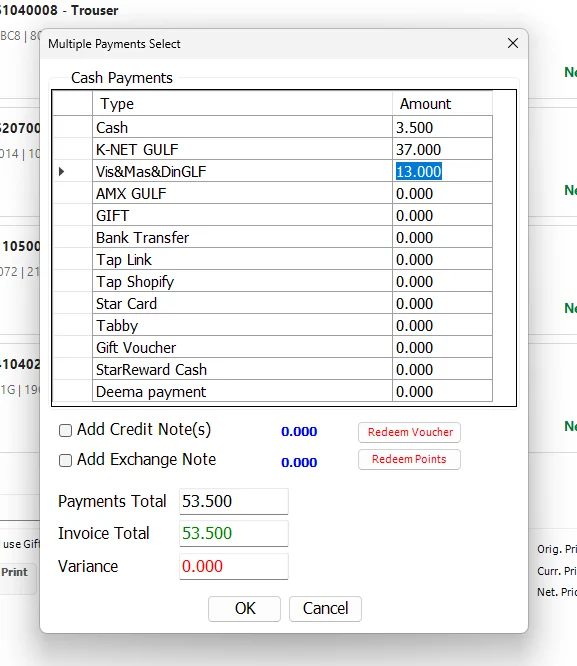
The Multiple Payments window lists the active payment methods that can participate in the split. Enter the amount against each required payment method until Payments Total equals Invoice Total. Variance shows the difference, and OK is enabled only when the payment allocation is valid.
The window can also incorporate special value sources:
| Action | Behavior |
|---|---|
| Add Credit Note(s) | Expands the Credit Note area so eligible notes can be found and selected as part of the payment. |
| Add Exchange Note | Opens the Exchange Note selector and adds its accepted amount to the payment total. |
| Redeem Voucher | Opens the voucher selector. Voucher payment rows are populated by IMS from the validated voucher(s), rather than typed manually. |
| Redeem Points | Available when Star Rewards is enabled. Opens the loyalty redemption workflow and places the redeemed StarReward Cash amount into the payment allocation. |
Voucher and Star Rewards amounts are controlled by their redemption workflows; they are not ordinary manually typed payment rows.
When IMS resets a special payment
Special payments are tied to the current receipt value and customer state. If the Net Total changes after a Multiple/Credit/Exchange Note, voucher, loyalty redemption or insufficient-balance Star Card allocation has already been prepared, IMS can clear that allocation and require the payment to be entered again.
Changing the customer can also invalidate loyalty or other customer-dependent payment data. IMS therefore recalculates the transaction and may warn that the payment has been reset.
VAT in Sales Transactions
When VAT is enabled, Sales Transactions shows VAT Base, VAT % and VAT Amount in Payment Details. Sales VAT is inclusive: the customer-facing transaction amount already includes VAT, and IMS separates the configured VAT portion from that amount.
| Value | Meaning |
|---|---|
| VAT Base | The portion of the VAT-inclusive transaction amount before VAT. |
| VAT % | The configured System Settings VAT percentage used by the current sale. |
| VAT Amount | The VAT extracted from the inclusive amount, using the configured VAT Round increment when one is set. |
For a Return/Credit Return loaded from an original receipt, IMS uses the original invoice's VAT percentage/base/amount together with earlier returns. This keeps partial or repeated returns within the original sale's VAT totals even if the current VAT settings have changed.
Discounts, coupons and promotions
IMS keeps item markdown, manual/customer invoice discount, coupon discount and promotional offer logic separate so the final receipt can be recalculated consistently as the transaction changes.
Manual receipt discount
The discount workflow can accept either a percentage or a discount amount. The user cannot exceed his/her configured discount limit unless another authorized user approves the action.
By default the manual discount is calculated on eligible full-price lines. Users whose policy permits it can choose to apply the discount on already discounted items; IMS then recalculates the discount base accordingly.
Discount Coupons
A coupon is validated against the configured Discount Coupon definition: Store eligibility, expiry date, required discount/Star Card where applicable and whether the coupon may apply to already discounted items. Loyalty-generated coupons are additionally validated against the current customer and previous-use state.
Special Offers
Active Special Offers are applied through the offer engine rather than entered manually. Depending on the configured offer, IMS can apply item/receipt discounts, free items, bundle/step pricing or cashback behavior. Some offer types deliberately prevent an additional manual discount while the offer is active.
Give Away / cashback voucher issuance
When a qualifying promotion requires a preprinted voucher, IMS asks the cashier to enter the voucher number. The number is checked against the configured prefix/serial range and duplicate use. IMS then uses the offer's amount and expiry rule to issue the voucher against the receipt.
Remove all discounts and use Gift voucher only restores the item prices for the receipt and restricts payment to the Gift Voucher workflow after confirmation.
Customers, Star Rewards and Star Cards
Customer search
Customer Search can look up VIP/privileged customers by ID, Name, Phone or Staff ID. Guest/Loyalty customer search can use Name or Phone. Selecting a customer can load the customer's category, receipt discount, credit information, phone/email and Star Rewards registration/tier values into the transaction.
Credit Sales/Credit Returns do not allow the normal Guest selection because an authorized credit customer is required.
Client's Info
The Client's Info dialog validates the Country Code/phone and email and links the phone number to the corresponding customer/Loyalty profile when available. If a valid phone number does not yet have a basic Loyalty customer record, IMS can create the basic phone/name profile used by the Sales/Rewards workflow.
For an existing profile, the screen can show Star Rewards registration state, Tier, available reward value/points, tier discount, last transaction and progress toward the next tier. The transaction also receives the customer's current earn multiplier.
Changing the customer after points/vouchers/special payments have already been prepared can invalidate those values, so IMS may reset the redemption/payment and recalculate the receipt.
Star Rewards redemption
When Star Rewards redemption is selected, IMS uses the customer's configured redemption method. If OTP/barcode validation is required, the customer code/card is validated before points are converted to a redeemable amount. The configured minimum redemption amount is also enforced.
If the available reward value is larger than the receipt, IMS limits redemption to the receipt value. A partial redemption becomes one component of Multiple Payments; a full redemption can cover the receipt directly.
Star Card
Before a Star Card can be used, IMS checks the card/profile state. The workflow can reject a suspended or expired card, a one-time card that has already been consumed, or a zero-balance card when it is not being used for an allowed recharge operation.
If the card is linked to a customer, IMS can load that customer's phone/profile into the transaction. When a valid card balance is lower than the receipt value, IMS moves the transaction to Multiple Payments and preloads the available Star Card balance.
Import Items
Import Items loads many item lines into the current Sales Transaction from a tab-delimited text file. The action is available only when the active user has the transaction-import permission and the current Sales view supports importing.
Current file format
The first line is treated as a header. Each following line contains:
| Column | Required value |
|---|---|
| 1 — Item Code | IMS Item Code. It must exist as a normal inventory item. |
| 2 — Qty | Positive integer quantity. |
| 3 — Price | Required only when Force System's Prices is not selected. The price cannot be negative. |
The importer validates the file before loading the transaction. It checks Item Code, Qty, optional imported price and duplicate-row conditions. Validation errors are written to an Error Log beside the import file.
Import settings
| Setting | Behavior |
|---|---|
| Force System's Prices | Uses the current IMS original/current price and discount instead of the file price. |
| Ignore Store's Balance | Allows the imported quantity to proceed without blocking on the current Store balance. This is forced for return transaction types. |
| Show Balance Warning | When Store balance is being checked, lets the user confirm an imported quantity that is higher than the recorded balance instead of silently accepting it. |
After the lines are loaded, Sales Transactions recalculates the receipt using the normal item, discount, customer and payment rules.
Transaction date override
Users with the Change Sales Transaction Date permission can open the date-change control from Sales Transactions. The selected date must belong to an open financial period.
The date can be applied to the current transaction, and the dialog also supports applying the working date to subsequent transactions in the same working session. IMS visually warns when the working/POS date differs from the Server Date so the operator is aware that the receipt is being entered with an overridden transaction date.
Save and Print
| Action | Purpose |
|---|---|
| New F5 | Starts a new transaction/receipt. |
| Save and Print F8 | Saves the transaction and prints the applicable receipt. |
| Save | Saves without using the normal Save-and-Print action. Availability depends on the user's transaction-date permission/workflow. |
| Print Gift Receipt | Produces the gift-receipt output for an eligible cash sale. |
Before saving, IMS rechecks the database connection, background blocking/maintenance state, payment/customer requirements, Star Card/loyalty conditions and other rules relevant to the selected transaction type. Cash receipts can invoke Cash Payment Calc, while configured Bank/card payments can require Authorization Codes before the transaction is committed.
POS context
The bottom status bar keeps the operational context visible: Store, POS No., POS Date and Active User. This is especially important for users who have access to more than one Store.